


How to Make Viral AI Product Videos & Store Vlogs from 1 Photo (2026 Step-by-Step Guide)
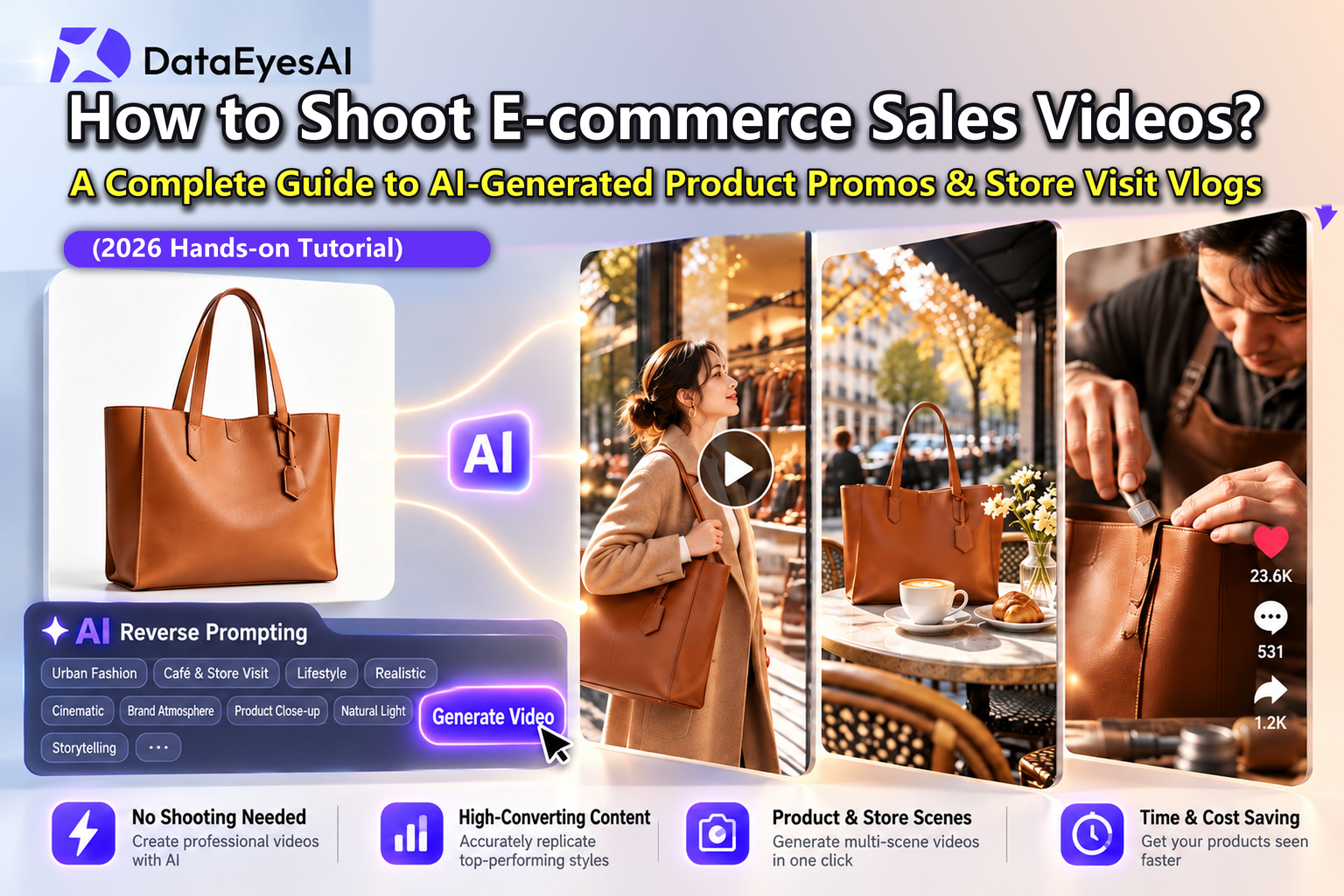
Overview: If you run a Shopify store, sell on TikTok Shop, or promote side-hustle products on Instagram Reels, you already know the biggest bottleneck: shooting scroll-stopping video ads is expensive and exhausting. When all you have is a plain product photo on a white background, how do you compete with big brands? In 2026, AI product video generation changes the game. Here is the exact step-by-step guide to placing any everyday product into viral, high-converting scenes using DataEyesAI Agents—with zero studio costs.
1. Why Traditional Product Filming Is Holding Solo Sellers Back
On short-form video platforms like TikTok, Instagram Reels, and YouTube Shorts, one metric dictates whether your product video goes viral or flops: your 3-Second Hook Rate.
Filming a product sitting on your kitchen table with basic phone lighting rarely stops the scroll anymore. Yet trying to produce cinematic commercials or aesthetic store-hopping vlogs the traditional way creates three massive hurdles for solo creators and small sellers:
Sky-High Location & Prop Costs: Renting a sunlit boutique, traveling to a snowy mountain cabin, or hiring lifestyle models can easily cost thousands of dollars per shoot.
"Boring" Niche Products Are Hard to Stage: Hardware tools, portable power stations, desk organizers, or everyday appliances look dull in a regular room—they need dramatic context to spark emotion.
Slow Creative Testing: Traditional shoots take days to plan, light, and edit. With an AI product video generator, you can test 5 completely different visual hooks for the same item in under 15 minutes.
2. Three High-Converting AI Video Formulas That Stop the Scroll
The secret to viral AI e-commerce videos isn't random sci-fi effects—it's combining authentic physical textures with unexpected visual contrast. Here are the three highest-converting creative angles right now:
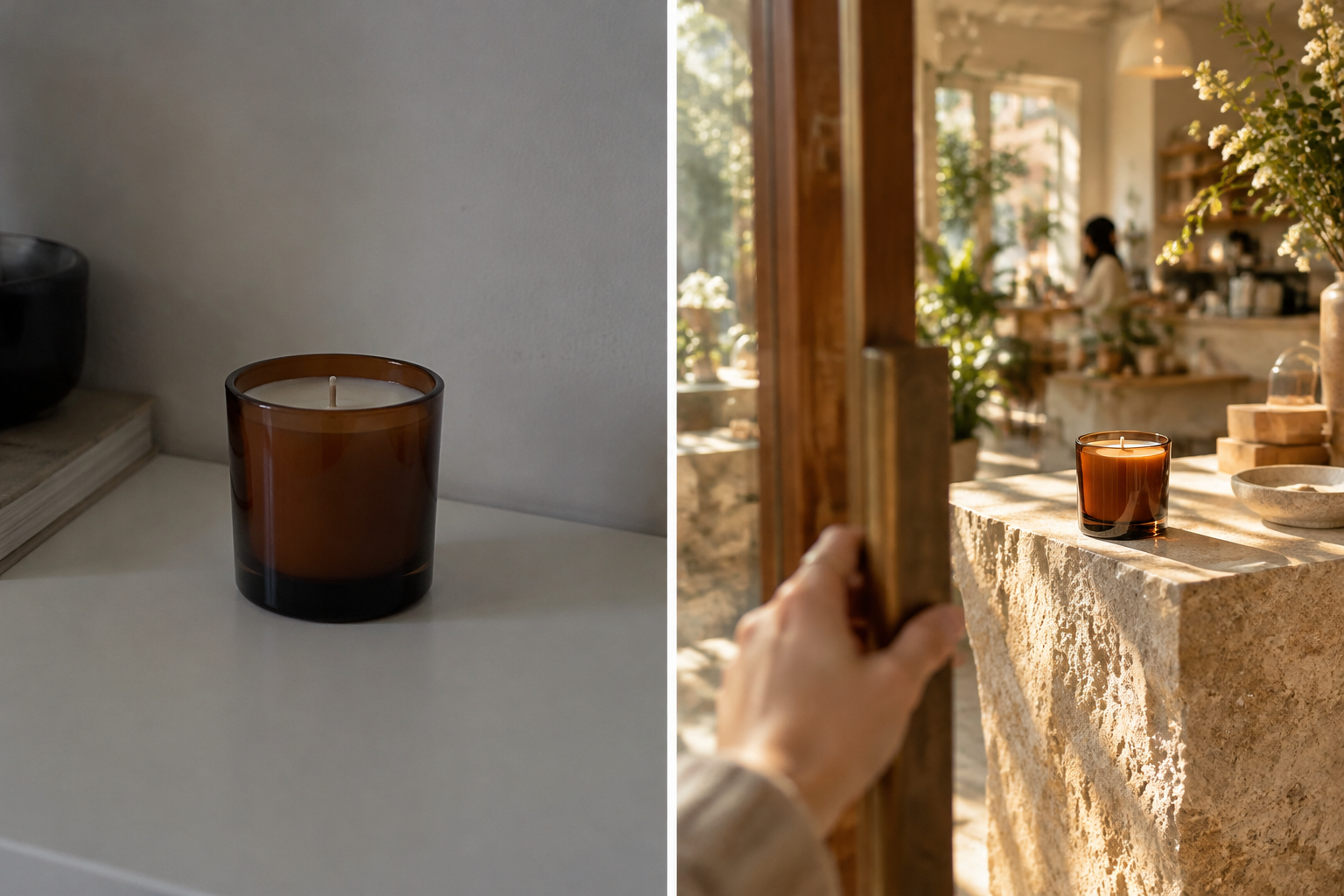
Formula 1: The First-Person (POV) Boutique Store Vlog
Best for: Scented candles, jewelry, vintage speakers, skincare, and home decor.
Why it works: A handheld POV camera pushes open the door of a sun-drenched Parisian or Tokyo concept store, panning naturally across wooden shelves before focusing on your product. Because it feels like an organic "shopping discovery vlog" rather than a hard sell, viewers stay watched past the 3-second mark.
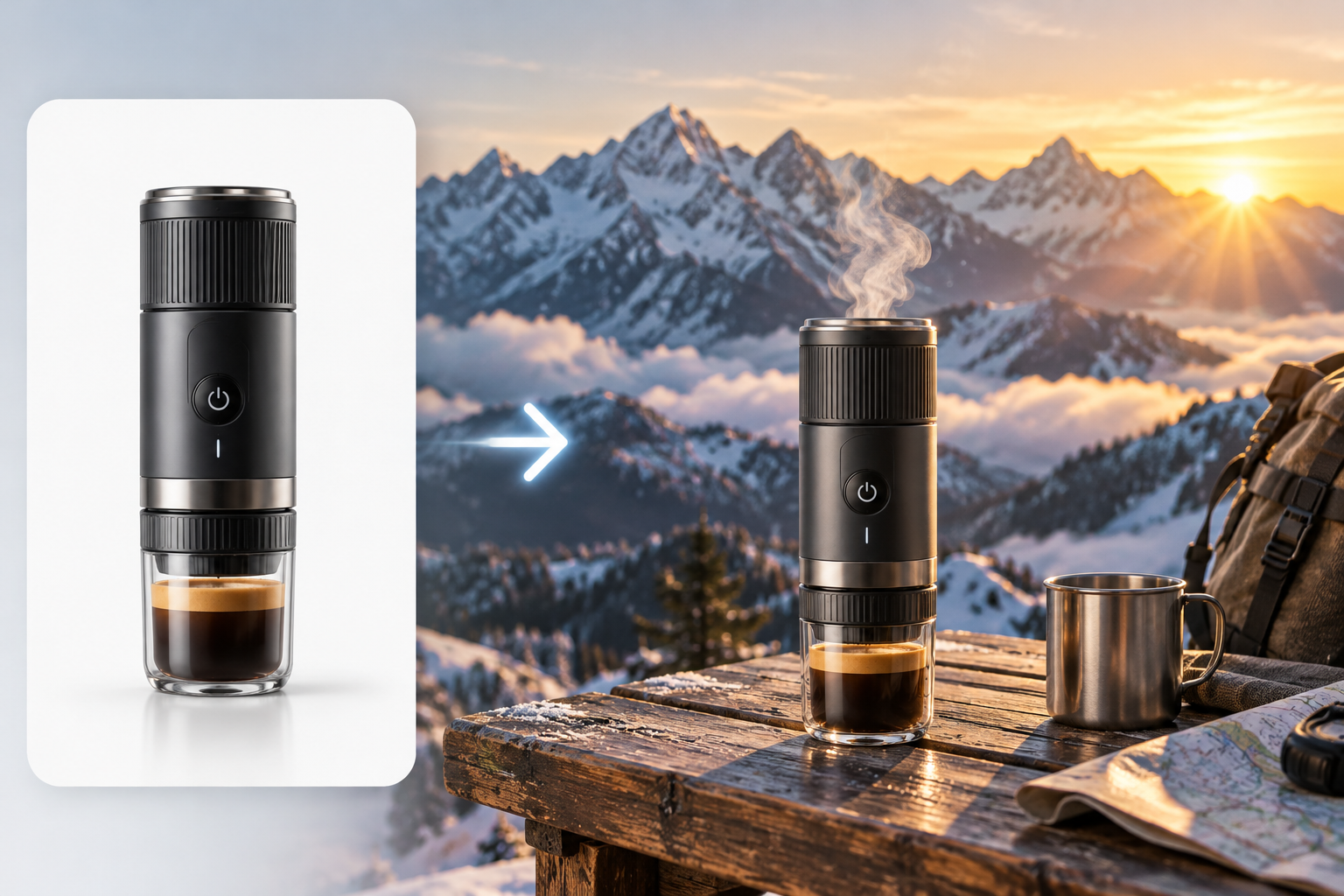
Formula 2: Extreme Environmental Contrast (Hot vs. Cold)
Best for: Portable espresso makers, insulated tumblers, outdoor watches, camping gear, and gadgets.
Why it works: Place an everyday item inside a dramatic natural environment. Imagine a matte-black portable coffee maker sitting on a rustic wooden table right next to a window where an Alpine blizzard is raging outside—while rich, steaming espresso pours smoothly into a glass cup inside. That instant hot-versus-cold contrast communicates product performance without a single word.
Formula 3: Miniature Crafters World (Tilt-Shift Macro)
Best for: Mechanical keyboards, tech accessories, leather goods, gourmet snacks, and precision tools.
Why it works: Scale your product up into a giant monument while tiny miniature artisans in overalls polish the surface, inspect details, or calibrate glowing LEDs. Tilt-shift macro cinematography creates instant curiosity and skyrockets watch time.
3. Step-by-Step Tutorial: How to Create AI Product Videos on DataEyesAI Agents
You don't need complex prompt engineering skills or five different subscriptions. Let's walk through the exact workflow on the live DataEyesAI Agents workspace (dataeyes.ai/agents):
Step 1: Open the Agents Workspace & Expand Your Prompt in "Text Gen" (or Use "Home" Templates)
Visit dataeyes.ai/agents in your browser. On the left navigation sidebar, you will see seven core modules: Home, Text Gen, Image Gen, Video Gen, Text Compare, Image Compare, and Video Compare. You have two easy ways to kick off your creative direction:
Option A (1-Click Remix on "Home"): Stay on the "Home" tab and browse the "Video Effects" inspiration gallery. When you spot a camera style you love, click the remix ("一键同款") button on the card to jump straight into the video generator with the exact prompt pre-filled.
Option B (Write Director-Level Prompts in "Text Gen"): Click "Text Gen" on the left sidebar. In the text input box, type a simple description of your product and the vibe you want, and ask the AI to turn it into a detailed video prompt.
💡 Copy-Paste Prompt Expansion Request for "Text Gen":
"I want to create a 5-second viral e-commerce video for my product: [Matte Black Portable Espresso Maker]. The vibe I want is [a cozy wooden cabin table with steaming espresso pouring, contrasting against a heavy snowstorm outside the window]. Please write a detailed AI video generation prompt specifying camera movement, lighting, physical textures, and atmosphere."
Step 2: Switch to "Video Gen" and Select Your AI Video Model
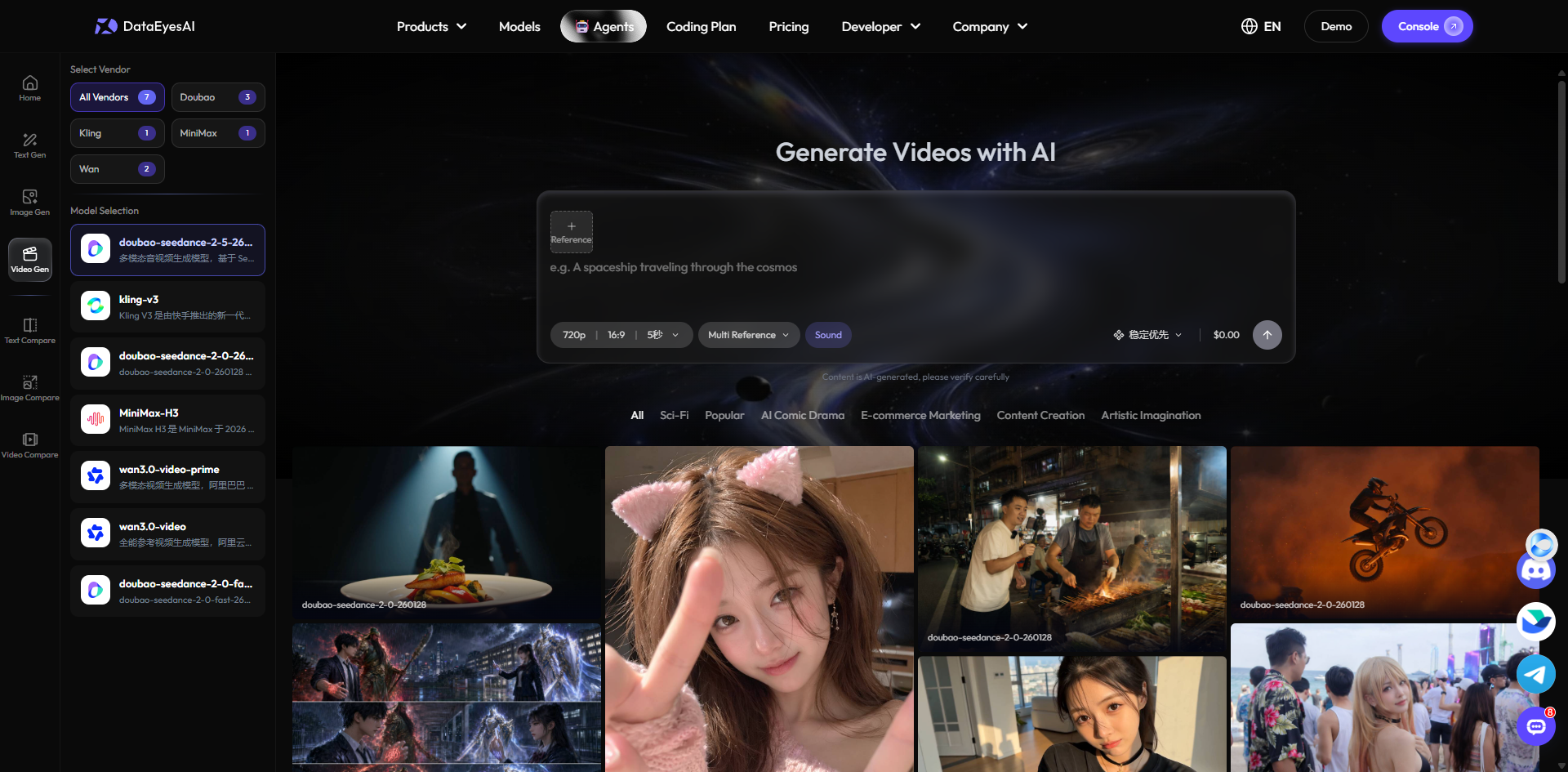
Next, click "Video Gen" on the left sidebar (titled "Generate Videos with AI"). On the left panel under "Select Vendor / Model", you can pick from the world's top video generation models in one place:
Kling Series (e.g., kling-v3): Exceptional at realistic lighting, liquid physics, steam, and crisp commercial close-ups.
Doubao Seedance 2.0 (doubao-seedance-2-0 / fast) & Wan 3.0 (wan3.0-video): Feature full support for "Multi Reference" mode, allowing you to combine product images and reference motion videos simultaneously.
MiniMax Hailuo (MiniMax-Hailuo-2.3 / MiniMax-H3) & Vidu (viduq3-pro): Deliver smooth, dynamic camera movements ideal for handheld POV store vlogs and miniature worlds.
Step 3: Upload Your Product Photo or Reference Video ("First & Last Frame" vs. "Multi Reference")
Inside the bottom composer bar of "Video Gen", DataEyesAI gives you two powerful ways to anchor your real product or replicate a viral camera move:
Mode 1: "First & Last Frame" Mode (Best for animating 1 product photo): By default, the mode switcher at the bottom is set to "First & Last Frame". Click "+ First Frame" on the top-left of the composer box and choose "Local Upload" to upload your product image (or pick from your "Material Library"). You can also optionally upload a "+ Last Frame", then paste your video prompt into the text box.
Mode 2: "Multi Reference" Mode (Best for combining a product photo + a reference viral video): When using supported models like
doubao-seedance-2-0,wan3.0-video, orMiniMax-H3, switch the bottom selector from "First & Last Frame" to "Multi Reference". Click "+ Reference" to upload both your product photo (JPG/PNG) AND a reference video clip (MP4/MOV)! Then simply tag them in your prompt using@Image1and@Video1—for example: "Follow the handheld camera movement and lighting rhythm of @Video1, and place the vintage candle from @Image1 onto the sunlit wooden display table."
Step 4: Set "Configure" Parameters, Toggle "Sound", and Download
Before hitting the blue "Send" button, fine-tune your output settings on the bottom toolbar:
Configure Parameters: Click "Configure" to set your aspect ratio (choose 9:16 for TikTok/Reels/Shorts, or 16:9 for YouTube and store landing pages), resolution (720P / 1080P), and duration (e.g., 5s or 10s).
Sound & Routing Priority: Toggle "Sound" on if your selected model supports native audio generation, and switch between "Stability priority" and "Price priority" on the right based on your budget.
Compare Models & Download Promptly: Want to test which model renders your product best? Use "Video Compare" on the left sidebar to run multiple models side-by-side. ⚠️ Pro Tip: Video history stores up to your latest 10 tasks for 24 hours, so click "Download" as soon as your favorite clip finishes rendering!
4. Three Ready-to-Use AI Product Video Prompts (Copy & Paste)
Upload your product photo into "+ First Frame" inside DataEyesAI's Video Gen workspace, copy any of the prompts below, and replace the bracketed item with your product:
Template 1: First-Person POV Boutique Vlog (For candles, jewelry, decor, lifestyle goods)
First-person POV handheld camera walking into an aesthetic Parisian concept boutique, warm afternoon sunlight streaming through tall windows onto a walnut display table. Natural handheld breathing motion, smoothly pushing in to focus on the [vintage brass scented candle] in the center, soft bokeh background with indoor plants and art frames, 4K authentic lifestyle vlog aesthetic.Template 2: Extreme Hot-vs-Cold Contrast (For kitchen appliances, tumblers, outdoor gear)
Cinematic macro close-up shot of a [matte-black portable espresso machine] resting on a rustic oak table inside a cabin, while a heavy Alpine blizzard with swirling snow rages outside the window. Slow camera push-in as rich, steaming golden crema espresso pours smoothly into a clear glass cup, warm amber indoor lighting contrasting sharply against the icy blue snowstorm outside, 8K commercial quality.Template 3: Miniature Crafters Wonder (For keyboards, electronics, watches, snacks)
Tilt-shift macro photography turning a [custom transparent mechanical keyboard] into a giant futuristic workshop. A dozen tiny miniature artisans in yellow overalls are busy working between the keycaps—some polishing the keycap edges with micro-brushes, others calibrating the warm glowing RGB light strips underneath. Crisp metallic reflections, playful storytelling, ultra-detailed 4K visual hook.
5. Frequently Asked Questions (FAQ)
Q1: Why don't I see a file or video upload button inside "Text Gen"?
A: In the DataEyesAI Agents workspace, "Text Gen" is dedicated to pure text ideation, scriptwriting, and prompt expansion. All image, video, and audio uploads take place directly inside "Image Gen" and "Video Gen". To upload a product photo or reference video, switch to "Video Gen" on the left sidebar and use "+ First Frame" or switch the bottom mode to "Multi Reference (+ Reference)".
Q2: What if I only have a casual phone snapshot of my product?
A: For the cleanest results, start in the "Image Gen" tab on the left sidebar. Upload your phone snapshot as a reference image to generate a high-end studio or lifestyle still frame first, then bring that polished image into "Video Gen (+ First Frame)" to animate it into a commercial clip.
Q3: Do AI-generated product videos perform well on TikTok and Instagram Reels?
A: Yes—social algorithms reward watch time, shares, and engagement above all else. When you pair a scroll-stopping AI visual hook (like an Alpine snowstorm contrast or POV store vlog) with a human voiceover, clear benefit captions, and trending background audio, AI product videos consistently outperform static studio shots.
Conclusion: Turn Your Product Catalog into Viral Video Ads Today
You no longer need a five-figure production budget to make your products look unforgettable. With a single photo and the right multi-model workflow, you can transport any item into a Parisian boutique, a snowy mountain cabin, or a miniature wonderland in minutes.
👉 Ready to create your first viral clip? Head over to DataEyesAI Agents (https://www.dataeyes.ai/agents), select "Video Gen", upload your product photo, and start generating for free!
You might also be interested
How a Brand Campaign Built Its Visual Pitch with GPT Image 2.5
DataEyesAI GPT Image 2.5 turns skincare ideas into campaign visuals.

How to Summarize 100-Page PDFs & Research Papers with Claude 5.5, Gemini 4 & DeepSeek (DataEyesAI Guide)
5 copyable AI prompts to summarize 100-page PDFs & papers with DataEyesAI.
How to Turn a Selfie into a Travel Photo Using DataEyesAI's Image Agent (With Prompts & Real Results)
Turn a single selfie into natural travel photos with ready-to-use AI prompts.


